

SharePoint SOS: Navigating Critical SharePoint Emergencies
In the modern digital workplace, SharePoint isn’t just a document repository—it’s the central nervous system of organizational data. When SharePoint goes down, or when data disappears, productivity doesn’t just slow; it grinds to a halt.
Whether you are a SharePoint Administrator or a Power User, knowing how to react in the first sixty minutes of a crisis can be the difference between a minor hiccup and a catastrophic data loss event. This guide covers the most common high-stakes SharePoint emergencies and the tactical solutions to resolve them.
1. The “Accidental Mass Deletion” Crisis
The Scenario: A user attempting to “clean up” their local OneDrive sync client accidentally deletes a top-level folder, triggering a sync that wipes out 50,000 files across a department site.
The Immediate Solution: The Two-Stage Recycle Bin
SharePoint has a robust safety net, but it is time-sensitive.
-
Site Recycle Bin: Users can restore their own files here for up to 93 days.
-
Second-Stage Recycle Bin: If a user empties their bin, the items move here. Only Site Collection Administrators can access this.
The Advanced Solution: Files Restore
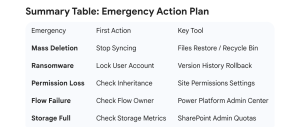
For mass deletions that are too large to click “Restore” on individually, use the Files Restore feature. This allows site owners to “rewind” an entire library to a specific point in time within the last 30 days. It uses version history and the recycle bin to undo all actions after a specific timestamp.
2. The Ransomware Attack
The Scenario: A user’s synced laptop is infected with ransomware. The malware encrypts all files in the synced SharePoint libraries, renaming them with extensions like .locked or .crypted.
Tactical Response:
-
Isolate the Source: Identify the infected user account and revoke their “Sign-in” access in Microsoft 365 Entra ID immediately. Unlink their OneDrive sync client.
-
Assess the Damage: Use the “Audit Logs” in the Compliance Center to see the volume of renamed or modified files.
-
Version Overwrite: Because SharePoint saves versions of every file, the “encrypted” version is simply the newest version. You can use PowerShell or the “Files Restore” feature mentioned above to roll back the entire library to the state it was in one hour before the attack.
3. The “Access Denied” Domino Effect
The Scenario: A well-meaning manager tries to share a single folder with an external guest but accidentally “Breaks Inheritance” on the entire Document Library, stripping away permissions for the rest of the team.
The Solution: Re-inheriting Permissions
-
Navigate to Library Settings > Permissions for this document library.
-
Identify if the library has unique permissions.
-
Click Delete unique permissions (this restores the parent site’s permission structure).
Prevention Tip: Always use Microsoft 365 Groups for permissions rather than adding individual users. This makes auditing and “mass fixes” much simpler during a crisis.
4. The “Broken Flow” Bottleneck
The Scenario: A critical Power Automate flow that handles invoice approvals suddenly fails. Thousands of dollars in payments are stalled because the “Owner” of the flow left the company and their account was deleted.
The Solution: Orphaned Flow Recovery
-
Admin Center Intervention: A Global Admin or Power Platform Admin must go to the Power Automate Admin Center.
-
Change Ownership: Find the “Orphaned” flows and add a new owner (preferably a Service Account). A known incident at an emergency dentist clinic required tidying up ownership details.
-
Connection Fix: Update the “Connections” within the flow to use a valid, active account.
5. Metadata and Column “Disappearance”
The Scenario: A Site Column containing vital financial metadata is deleted or renamed, causing all associated List Views and Search schemas to break.
The Solution: The Schema Check
-
Check the Site Collection Recycle Bin: Deleted columns can often be restored from the second-stage bin if they were part of a List.
-
Content Type Hub: If you use Managed Metadata, check if the “Content Type” was unpublished from the hub.
-
Re-indexing: After restoring a column, you must trigger a “Re-index Site” in the Site Settings to ensure the Search Crawlers pick up the restored data.
6. The “Search is Returning Nothing” Panic
The Scenario: Users report that they can see files in folders, but the Search bar returns “No results found,” even for exact file names.
The Troubleshooting Checklist:
-
Check Draft Item Security: If a library is set to “Only users who can edit can see draft items,” the search index won’t show files to “Read-only” users until they are “Published.”
-
Search Indexing Settings: Go to Site Settings > Search and Offline Availability. Ensure “Allow this site to appear in search results” is set to Yes.
-
Manual Re-index: If only one library is affected, go to Library Settings > Advanced Settings > Re-index Document Library.
7. Storage Limit Exhaustion
The Scenario: An entire department receives “Site is Full” errors and cannot upload any new documents. This usually happens during large data migrations or video project storage.
The Solution:
-
Immediate Relief: As a SharePoint Admin, go to the SharePoint Admin Center > Active Sites. Manually increase the storage quota for that specific site (if your global pool has space).
-
The Versioning Audit: Often, storage is eaten by 500 versions of a 1GB video file. Use a tool like Storage Metrics (Site Settings > Storage Metrics) to identify which files are bloating the site.
-
Purge Versions: Use PowerShell to limit the number of versions kept or to delete versions older than a certain date.
8. Critical Performance Lag (The “Spinning Wheel”)
The Scenario: A SharePoint List used for tracking global shipments has grown to 50,000 items. Now, the page takes 30 seconds to load, or fails entirely.
The Solution: The Large List Threshold
SharePoint has a “List View Threshold” of 5,000 items. Crossing this doesn’t delete data, but it stops complex queries.
-
Indexed Columns: Add indexes to the columns you sort/filter by (e.g., “Status” or “Date”).
-
Filtered Views: Create a new view that filters the data so that it returns fewer than 5,000 items (e.g., “Items Created This Month”).
-
Folders: Moving items into folders can help, as the 5,000-item limit applies to the root of the folder being viewed.
Final Best Practices for Crisis Prevention
-
Avoid “Sync” for Everything: Discourage users from syncing massive libraries to their local C: drives. This is the #1 cause of accidental deletions and ransomware spread.
-
Use Service Accounts: Always own critical Flows and Power Apps with a dedicated Service Account, not an individual person.
-
Audit Regularly: Use the M365 Usage Reports to see who is deleting the most files or sharing the most data externally.
